

Video Pro Module Documentation
The Video Pro module from the Divi Video Pro plugin shows one video, with your own play button, autoplay that waits for the right moment, a muted preview, popups and privacy-friendly loading.
On this page
- Choosing the video
- Overlay image
- Play button
- How the video starts
- Silent Preview
- Sound
- Player controls
- Looping and what happens at the end
- Popup
- Loading and privacy
- Styling
- Questions about Video Pro
The Content tab lists the groups roughly in the order you’ll need them: first the video, then how it looks before it plays, how it starts, and how it loads. Colors, sizes and borders are in the Design tab.
Choosing the video
Open Video Source and pick where the video comes from. Only the field for that source is shown.
- YouTube: paste the link from the address bar or from the Share button.
- Vimeo: paste the link. Unlisted videos work when you paste the full link, including the code after the video number.
- Media Library: upload or choose an MP4 file. Adding a WEBM version is optional; the browser uses the format it supports.
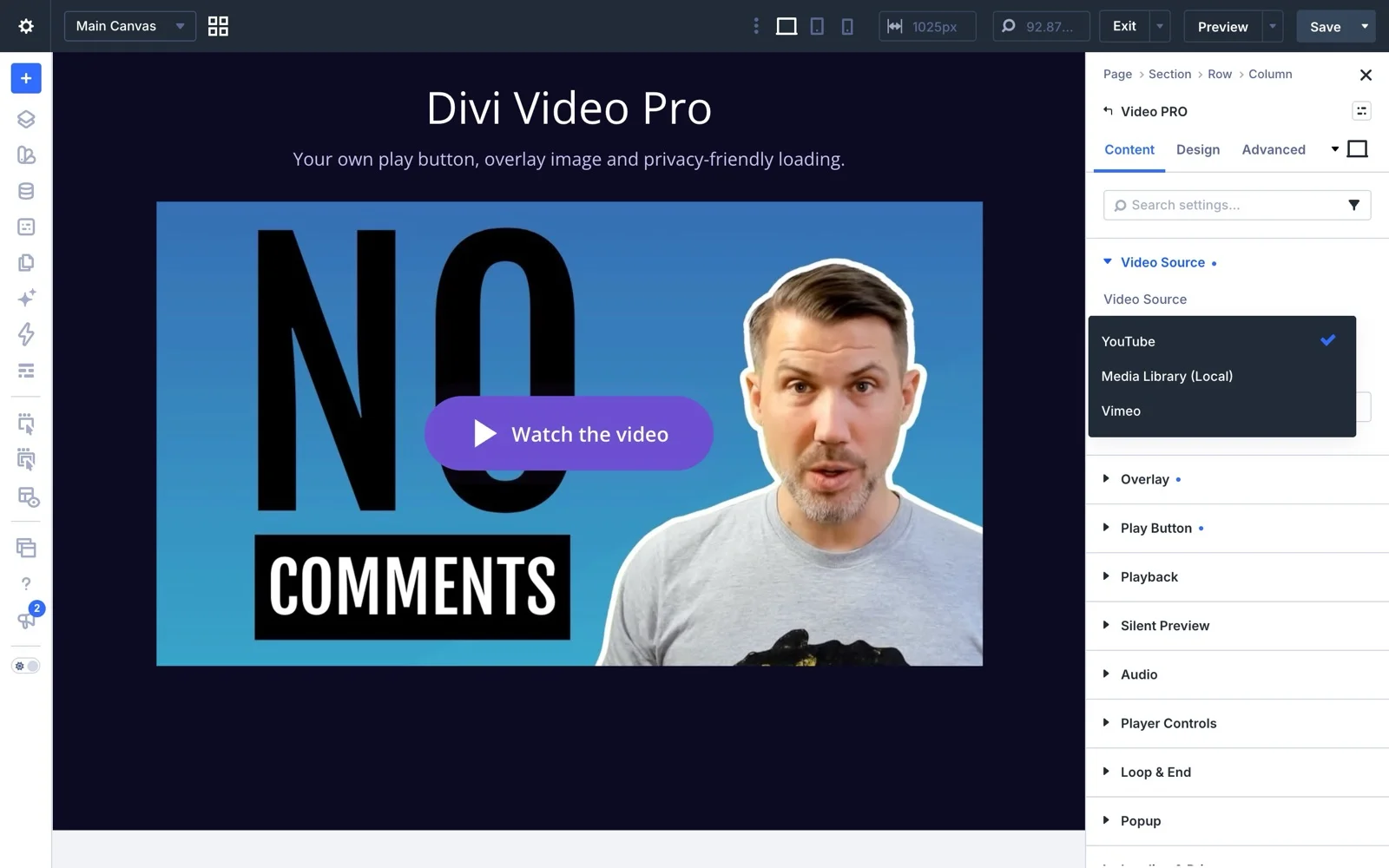
If the module says “Please add your amazing video now”, the link is missing or not a valid video link.
Overlay image
The overlay image covers the video until the visitor presses play. It’s what people see first, so it’s worth choosing a good one.
You can upload any image, or click Generate From Video. The plugin then copies the video’s own thumbnail into your Media Library and uses it. Because the copy lives on your site, the page doesn’t need to contact the video service just to show the image.
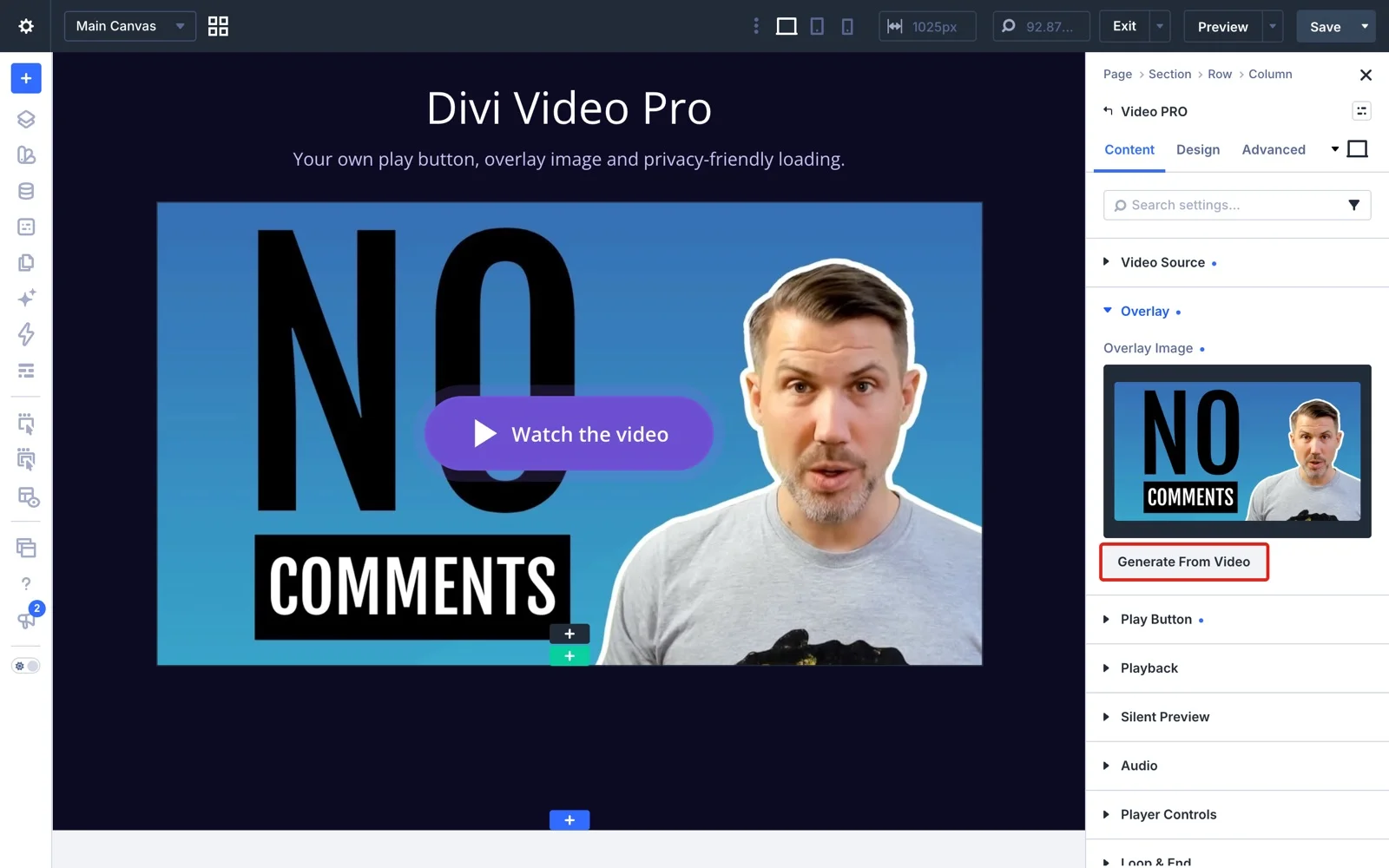
Two settings need an overlay to put the play button on: a customized play button and Don’t Load Data Until Click. Without your own image, a colorful placeholder is shown, and the Visual Builder reminds you to add one.
Play button
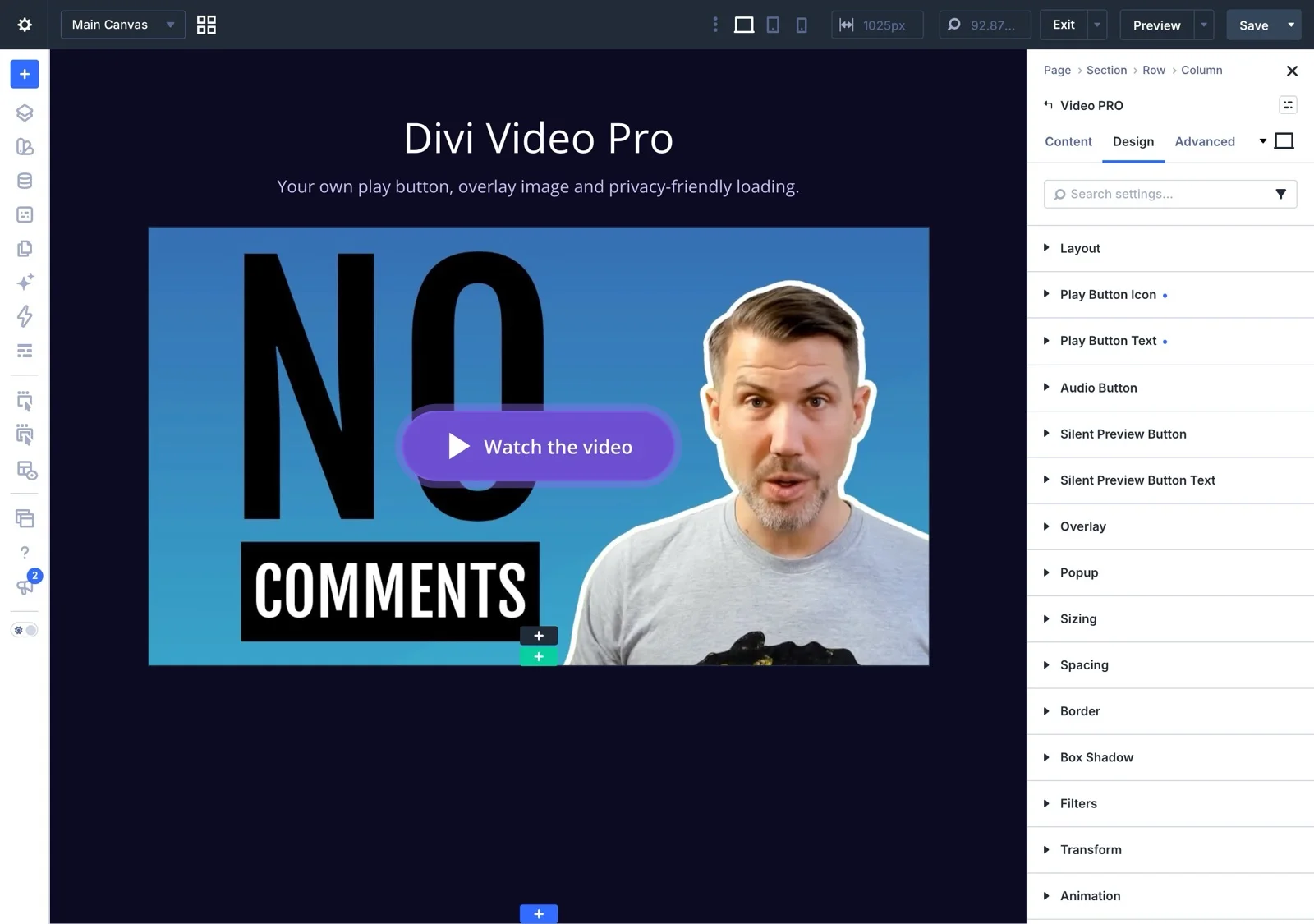
Use any icon from Divi’s icon library, paste SVG code or upload an SVG file. Then decide where it goes: the center or any of the eight positions around the edges.
You can put a short text next to the icon, like “Watch the video”, and make the button move to catch the eye. Choose Pulse, Border Pulse, Shadow Pulse or Shake, and let it play once or keep going.
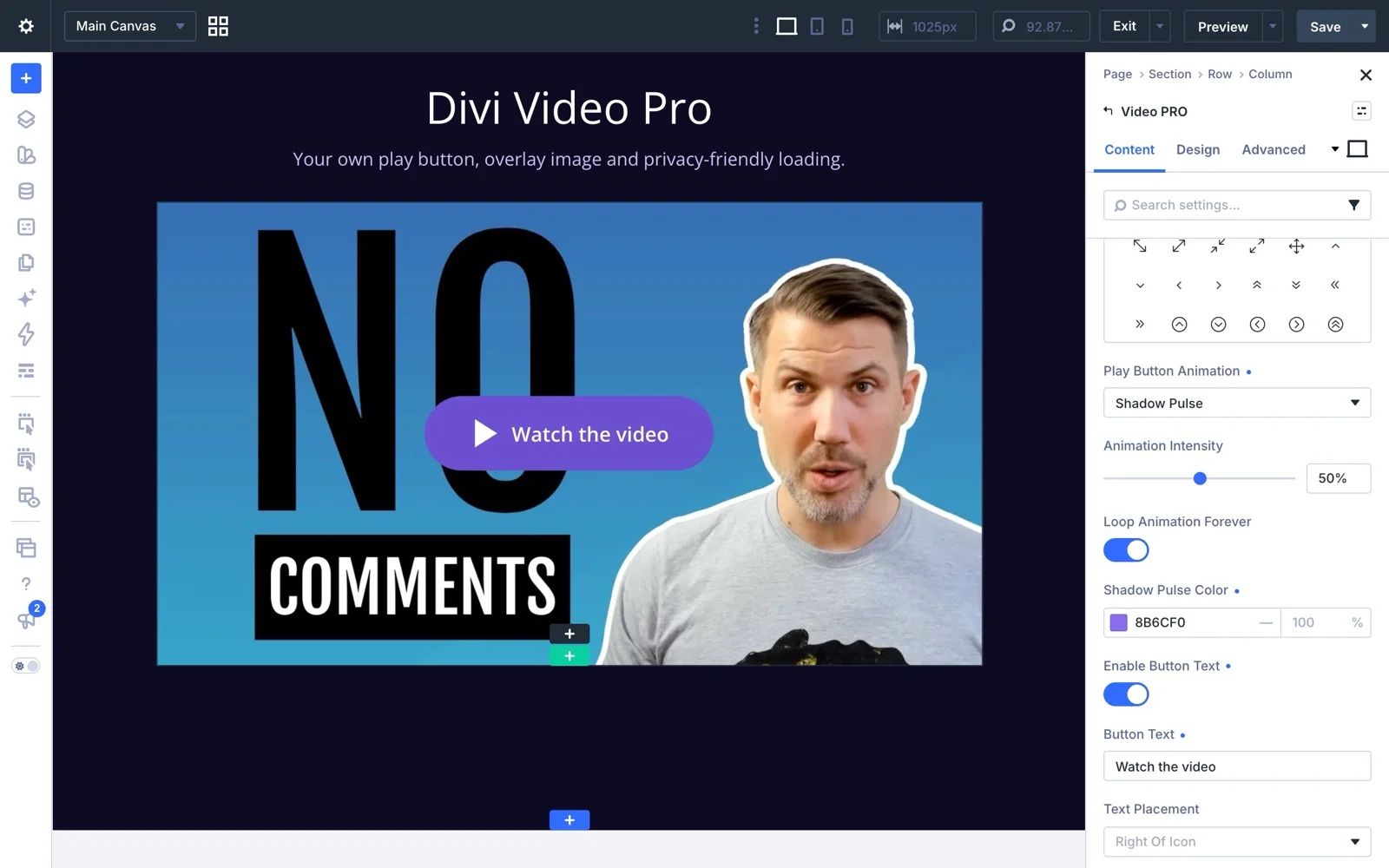
Its colors, size, spacing, border and shadow are in the Design tab under Play Button Icon and Play Button Text.
Hide Play Button hides the button completely, also while the page loads. A click anywhere on the video still starts it. It can’t be combined with Only Show Play Button.
How the video starts
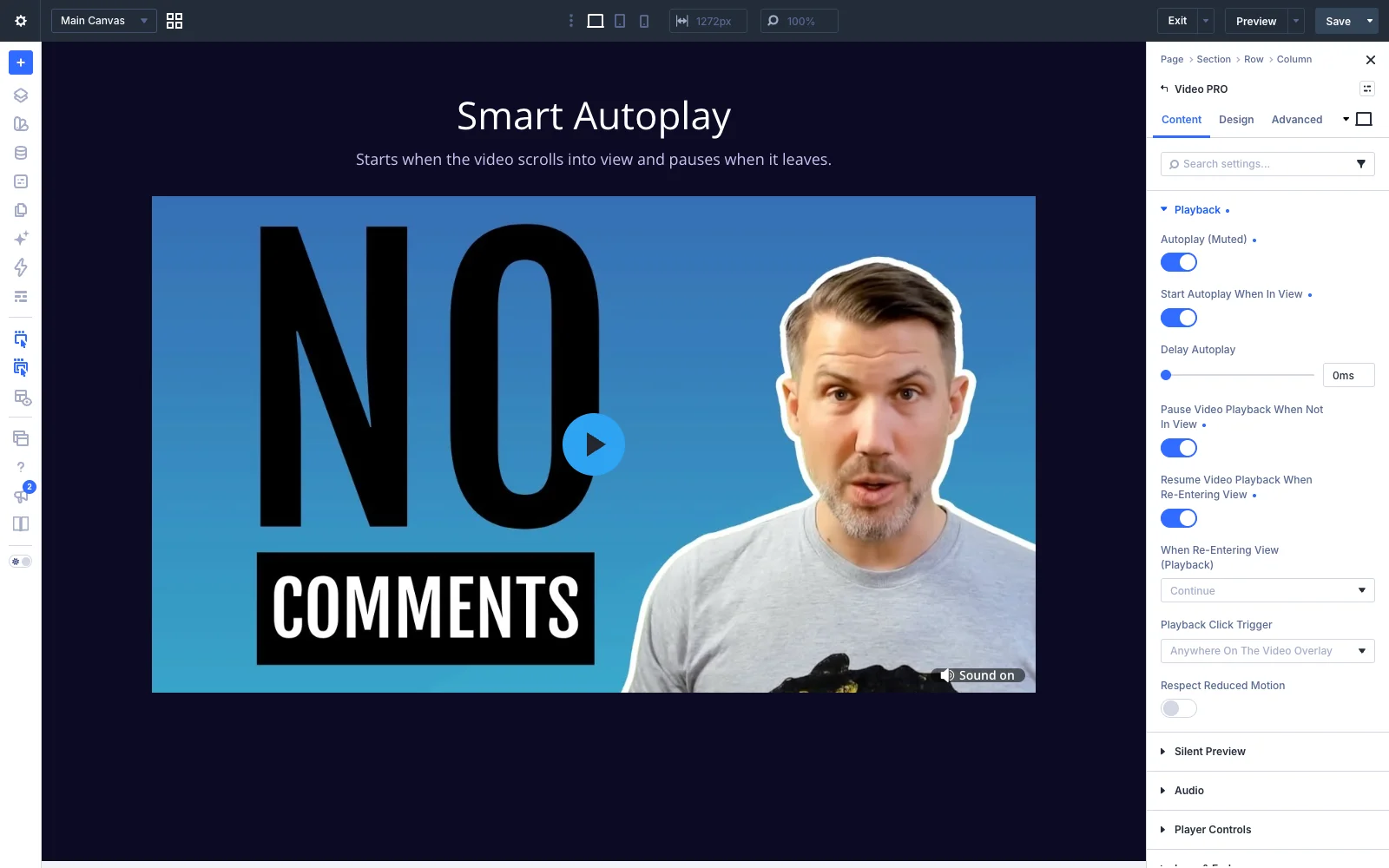
The Playback group decides when and how the video plays.
- Autoplay (Muted) starts the video on its own. Browsers only allow that without sound, so an autoplaying video always starts muted.
- Start Autoplay When In View holds the start until the visitor scrolls down to the video. Use it for videos below the fold, so they don’t play unseen.
- Delay Autoplay adds a short wait before the start, for example to let a headline animate in first.
- Pause Video Playback When Not In View pauses the video when it scrolls out of sight. With Resume Video Playback When Re-Entering View it plays again when it comes back, either where it stopped or from the start.
- Playback Click Trigger sets what a click does. Anywhere on the video, only the play button, or nothing at all.
- Respect Reduced Motion skips autoplay and animations for visitors who have asked their device for less motion.
Tip: a showcase loop. For a short video that should just play, like a product in motion, combine Autoplay (Muted), Loop, Hide All Player Controls and Disable Click Trigger Completely. Visitors can’t pause it, so keep it short and muted. If a device blocks autoplay, the play button appears so the video can still be started.
Silent Preview
Silent Preview plays the video muted as a teaser, with a button on top that lets the visitor watch it with sound. It grabs attention without surprising anyone with audio.
You choose what the button does: start the video over from the beginning, or keep playing from the current spot. The button can be visible all the time or only on hover, and it has its own icon, text, position and animation.
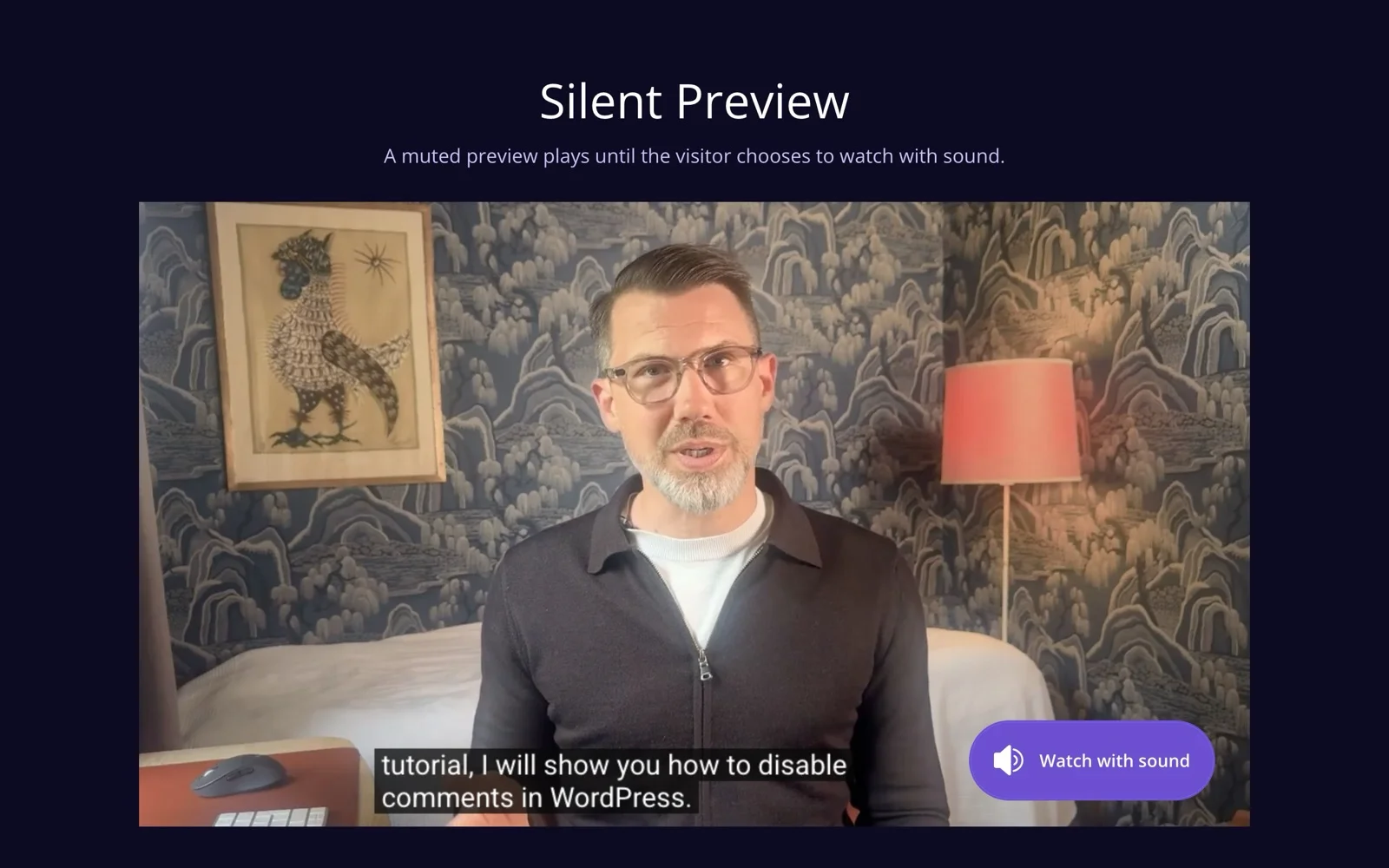
The preview plays once and stops on the last frame. Turn on Loop if it should keep running. For a video further down the page, turn on Start Silent Preview When In View, so the preview begins when visitors get there. If the custom audio button is on, it shows once the visitor has clicked the Skip Silent Preview button, since that button turns the sound on during the preview.
Sound
Start Video Muted starts the video without sound. Show Custom Audio Button adds your own sound on/off button to the video, with optional texts like “Sound on” and “Sound off”. Place it in a corner or the center, and show it all the time or only on hover. Phones and tablets have no hover, so there these buttons are always shown.
Player controls
Hide All Player Controls removes the player’s own control bar for a cleaner look. A click on the video still plays and pauses it. If you want simple controls back, turn on Display Custom Play & Mute Buttons for a small play/pause button and a mute button in a corner or the center, always visible or on hover. These buttons aren’t available for YouTube videos.
You can also hide single controls: full screen, volume, download, Picture-in-Picture, cast and playback speed. Hide download, Picture-in-Picture and speed together and the three-dot menu disappears as well. The cast button only shows when the browser finds a device to cast to.
Display Subtitles (If Available) turns on subtitles for videos that have them.
For Vimeo you can hide the title, the author’s name and picture, and set the player color.
Looping and what happens at the end
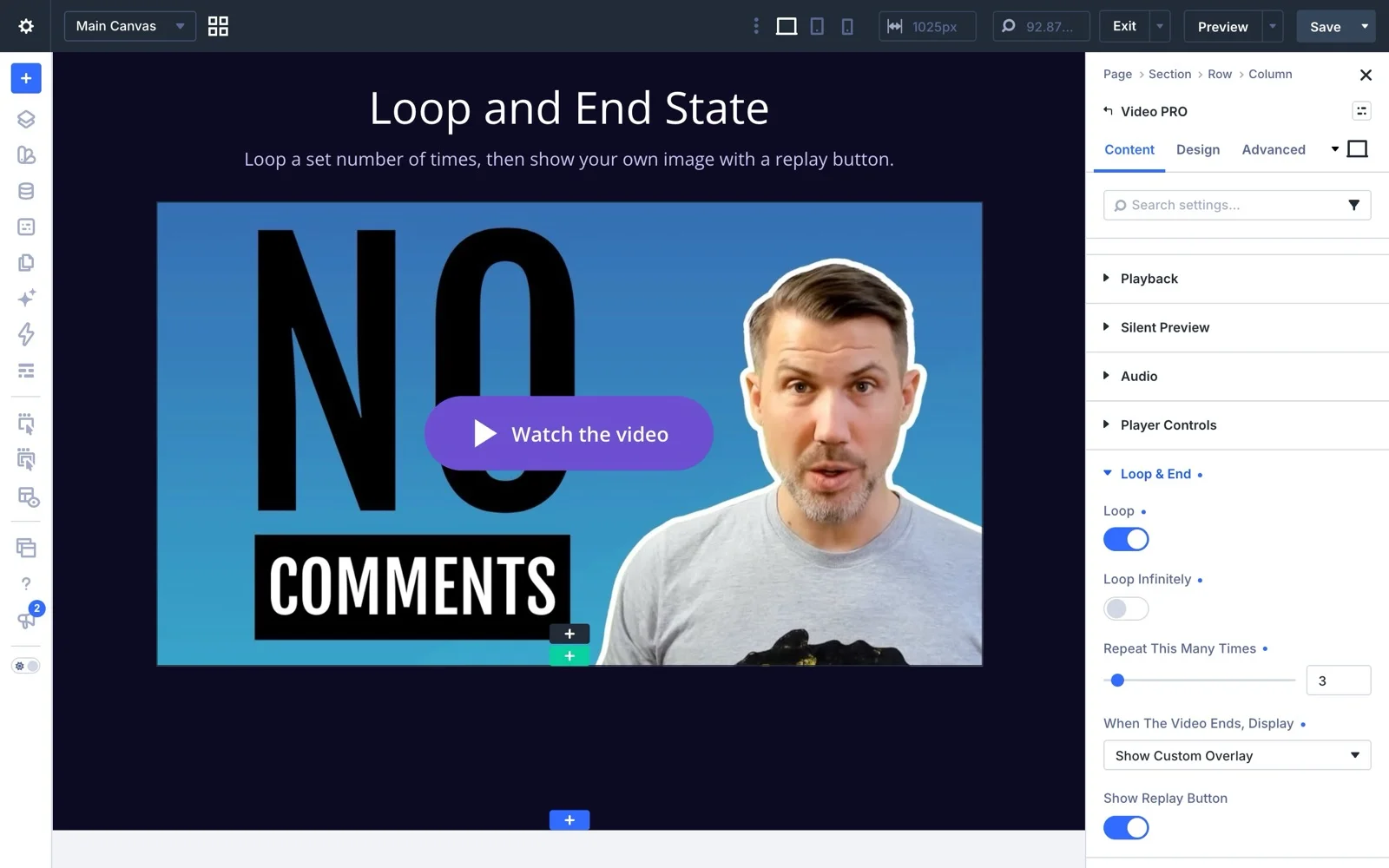
In Loop & End, loop the video forever or a set number of times. Then pick what visitors see when it’s over, and add a replay button if you like.
- Video file: the last frame, the first frame or your overlay image.
- YouTube: YouTube’s end screen, the video’s thumbnail or your overlay image.
- Vimeo: Vimeo’s end screen, the video’s thumbnail or your overlay image.
Showing your own overlay image at the end keeps visitors on your page instead of sending them to related videos.
Popup
Turn on Open Video In Popup and a click opens the video in a lightbox over the page. Other videos on the page pause while it’s open. Visitors close it with the close icon, the Escape key or, if you allow it, a click outside the video.
Only Show Play Button turns the module into just a button. That’s handy for a “Watch the demo” button in a hero section, without a video area on the page.
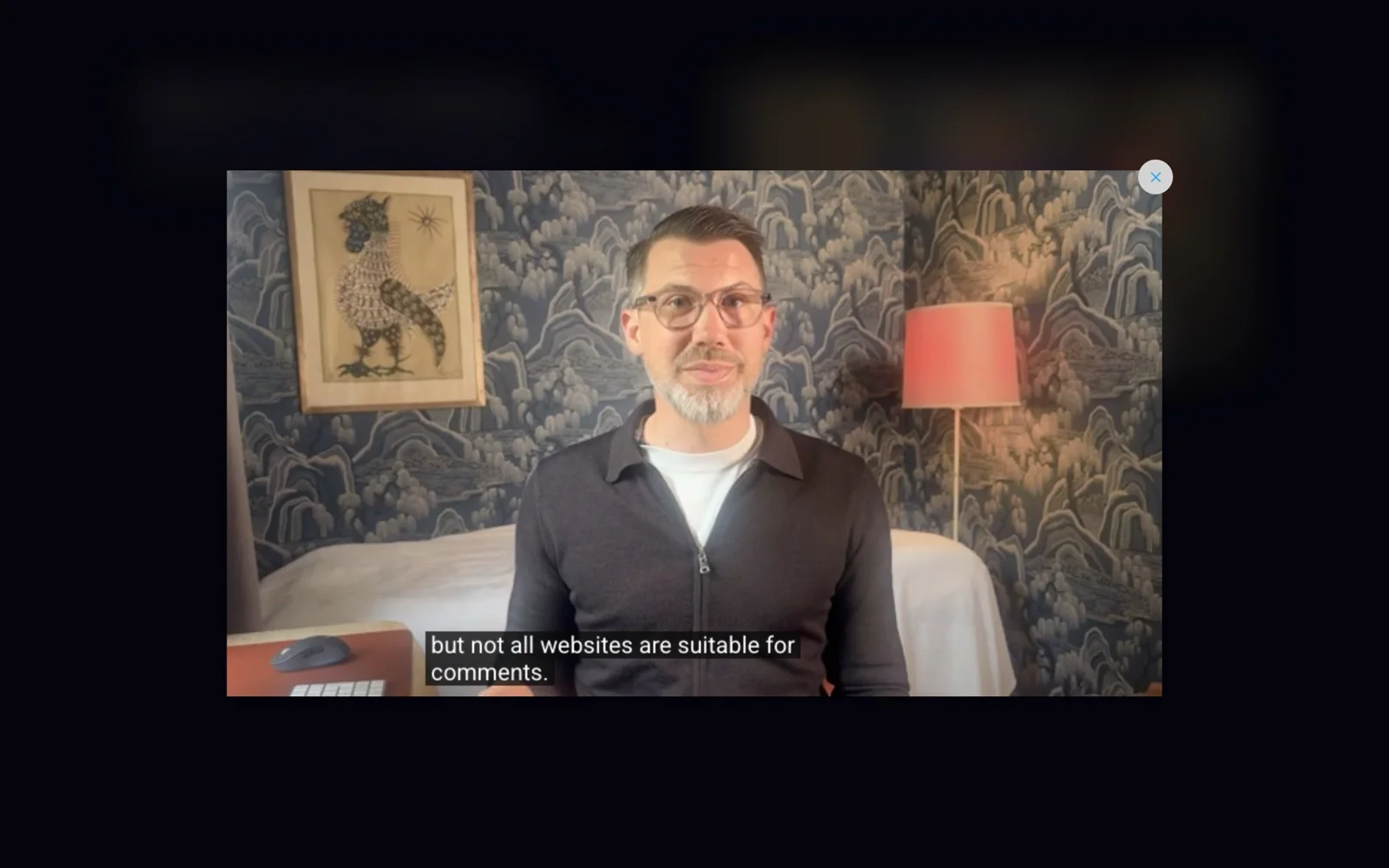
The popup’s width, height, backdrop color, blur and close icon are styled in the Design tab under Popup.
Loading and privacy
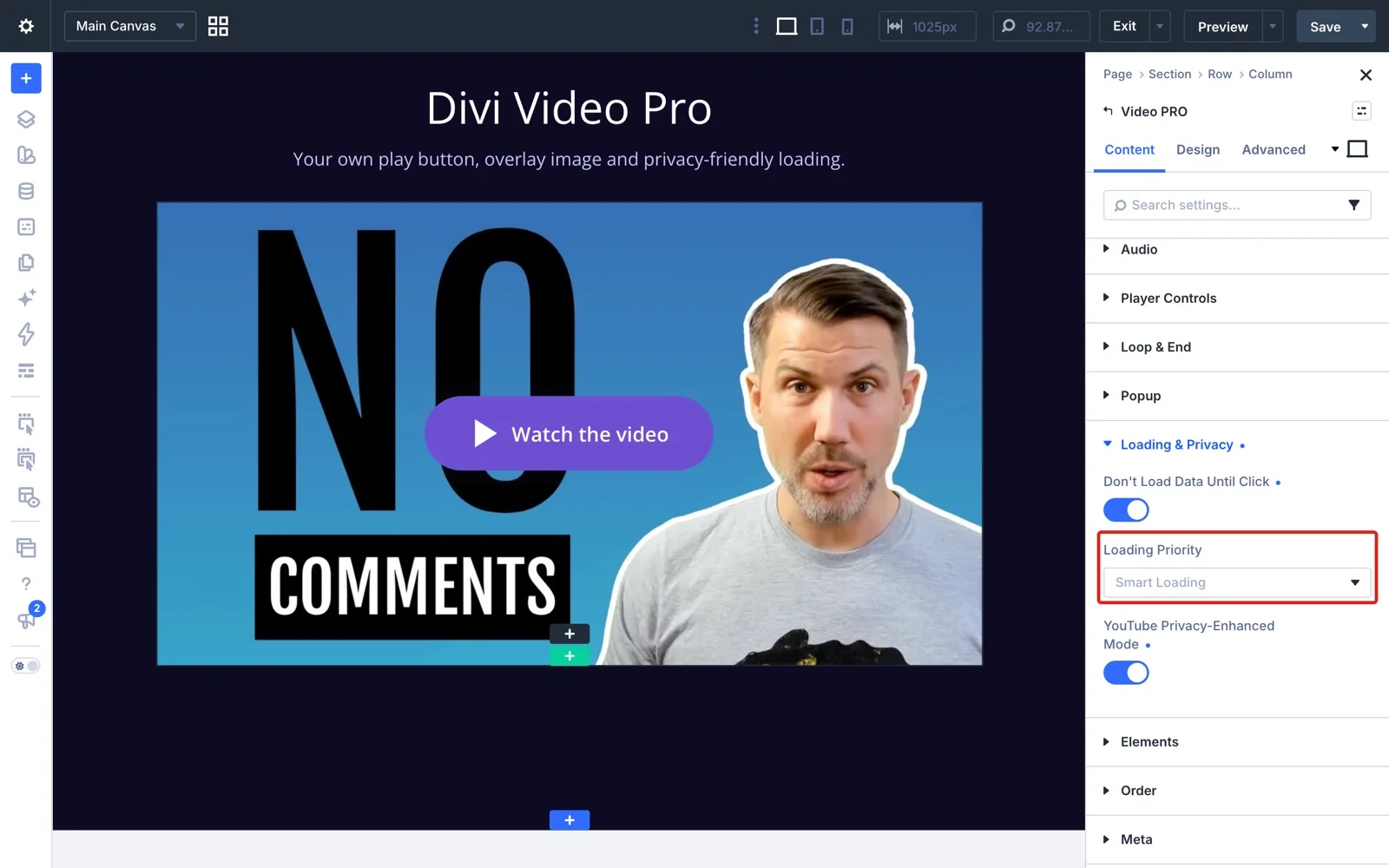
Don’t Load Data Until Click shows only the overlay image until the visitor presses play. Nothing is loaded from the video service before that click, which makes the page lighter and keeps visitor data from being sent before anyone chooses to watch. It works with the popup too. Add an overlay image of your own for the best result, otherwise the placeholder is shown.
Loading Priority decides when the image and the player load:
- Smart Loading (default) loads the first video on the page at once and the rest when the visitor scrolls to them. Right for most pages.
- Load Immediately is for another video that’s also visible without scrolling, like two videos side by side at the top.
- Load When Visible is for a video lower down that would otherwise count as the first, like the only video on a long page.
YouTube Privacy-Enhanced Mode plays YouTube videos from youtube-nocookie.com. Vimeo Do Not Track asks Vimeo not to track your visitors.
Styling
The Design tab has a group for each part of the module: the play button icon and text, the audio button, the Silent Preview button and text, the overlay, the popup and the Vimeo player color. Each part has its own colors, sizes, borders and shadows, also on hover. Divi’s usual sizing, spacing, border, shadow, filter, transform and animation settings are there too.
You can give tablets and phones their own values with Divi’s responsive settings, for example a different play button position, SVG icon size, text placement or popup width on phones.
FAQ
What's the difference between the annual and the lifetime license?
Can I use Divi Video Pro on client websites?
What happens when an annual license expires?
Is there a money-back guarantee?
I usually buy on the Divi Marketplace. Should I buy there instead?
Do you add VAT?
Why doesn't autoplay start on my device?
Usually it's a setting on the device, not on your site. Browsers only allow autoplay without sound, so Divi Video Pro always starts an autoplaying video muted. Even then, the device or browser can stop it:
- iPhone and iPad block autoplay when Low Power Mode is on.
- Some phones and browsers block it when data saving or battery saving is on.
- Safari and Firefox have a setting that stops autoplay on all websites or on one site.
- If the device is set to reduce motion and Respect Reduced Motion is on in the module, autoplay is skipped on purpose.
The video then waits for a tap or click instead, so visitors can still start it. To see autoplay work, turn off Low Power Mode or try another device. If the video doesn't start on any device, check that Start Autoplay When In View or Delay Autoplay isn't making it wait, and clear your caches.
