

Divi Video Pro Documentation

On this page
- Features at a glance
- What you need
- Installing the plugin
- Updating
- Adding your first video
- Which module should I use?
- Video sources
- Theme Builder, canvases and Dynamic Content
- Speed and privacy
- Caching and optimization plugins
- Translations
- Frequently asked questions
Features at a glance
Video Pro
- YouTube videos
- Vimeo videos
- Video files from the Media Library
- Custom play button: icon, optional text, nine positions, animation, or hide it
- Overlay image, with Generate From Video
- Autoplay (muted), immediately, after a delay or when in view
- Pause when out of view, resume or restart on return
- Silent Preview: muted preview with a button to watch with sound
- Loop a set number of times or infinitely
- End state: last frame, first frame, thumbnail or overlay image, optional replay button
- Popup, or a play button only that opens the popup
- Hidden player controls with custom play and mute buttons
- Custom sound button for muted videos
- Don’t Load Data Until Click
- YouTube Privacy-Enhanced Mode
- Vimeo Do Not Track
- Loading priority setting
- Option to respect reduced motion
- Works with Dynamic Content and Theme Builder
- WPML compatible: translate texts, videos and images per language
Video Slider Pro
- Several videos in one slider, each slide with its own source
- Navigation: thumbnail row, dots or none, plus arrows
- Drag or swipe to change slide
- Thumbnail row: visible thumbnails per device, arrows, dots and drag
- Active thumbnail styling: size, position, icon and overlay color
- Only the visible slide’s video loads
- Autoplay on slide change
- Go to the next slide when a video ends, with optional start over after the last slide
- Popup playlist: the next video plays in the same popup
- All Video Pro settings apply to every slide
- Per slide: video, overlay image and play icon
What you need
- The Divi theme, version 5 or later, as your active theme. A Divi child theme is fine.
- WordPress 6.4 or later.
- PHP 7.4 or later.
The plugin is made for Divi 5 only. It won’t run on Divi 4, on the Extra theme or with the Divi Builder plugin on another theme. If Divi 5 isn’t active, the plugin stays switched off and WordPress tells you why, so nothing breaks on your site.
Installing the plugin
- Download the Divi Video Pro zip file you got with your purchase. Keep it zipped.
- In WordPress, go to Plugins > Add New Plugin and click Upload Plugin.
- Choose the zip file and click Install Now.
- Click Activate Plugin.
That’s it. Open any page in the Visual Builder and the two new modules are ready to use. The plugin’s own page is under Divi > Divi Video Pro.
Updating
To install a new version, upload the new zip file the same way as above. WordPress sees that the plugin is already installed and asks if you want to replace it. Click Replace current with uploaded. Your settings and videos stay as they are.
After an update, clear your site’s cache and your browser cache, so visitors get the new files right away.
You find every change in the changelog.
Adding your first video
- Open a page in the Visual Builder.
- Click the gray plus icon in the row where the video should go.
- Search for “video”.
- Pick Video Pro or Video Slider Pro.
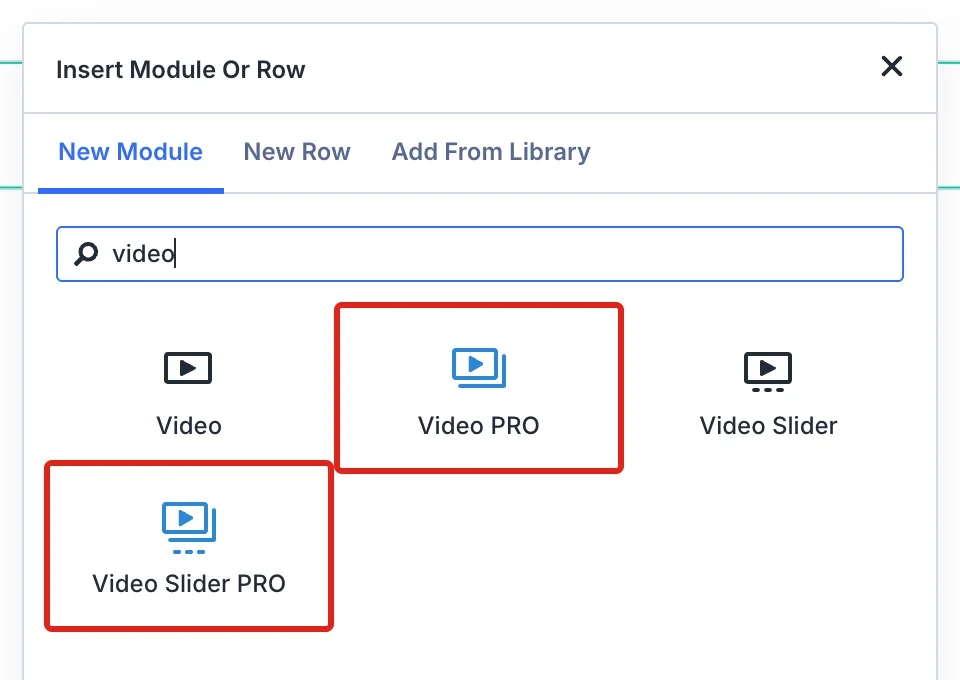
A new Video Pro module starts with a sample video, so you see the result straight away. Swap it for your own under Video Source. A new Video Slider Pro starts with three slides that you can edit, remove or add to.
Divi’s own Video and Video Slider modules are still there, and your existing videos are not touched. You can switch a video over to a Pro module whenever you need the extra features.
Which module should I use?
- Video Pro for one video: a hero video, a product demo, a testimonial, a video that opens in a popup from a button, or a muted background-style loop.
- Video Slider Pro for a collection: a course or tutorial series, a set of testimonials, a portfolio reel. Visitors switch between the videos with thumbnails, dots, arrows or by swiping, and the slider can play through all of them by itself.
Both modules share the same playback, sound, popup and privacy settings. In the slider they apply to every video, and each slide only needs its own video and image.
Video sources
Each video can come from one of three places:
- YouTube. Paste the link from the address bar or from YouTube’s Share button.
- Vimeo. Paste the link. For an unlisted video, use the full link with the code at the end.
- Your Media Library. Upload an MP4 file, and a WEBM file too if you like. The visitor’s browser picks the one it supports.
In a slider, every slide picks its own source, so one slider can mix them.
Theme Builder, canvases and Dynamic Content
Both modules work in Theme Builder headers, bodies and footers, in Divi canvases (including canvases that open with an interaction) and as global modules.
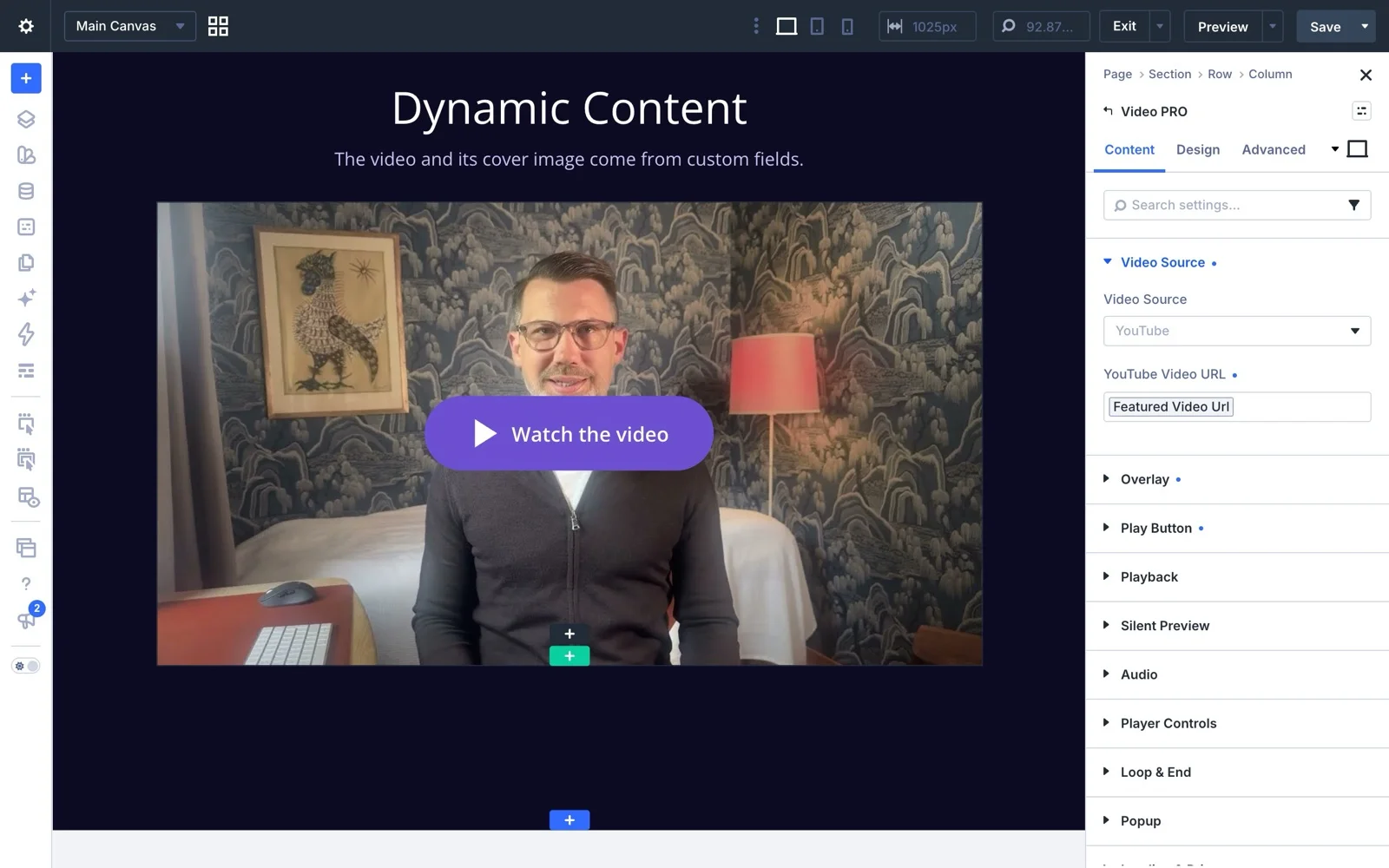
The video link, the video file and the overlay image all accept Divi’s Dynamic Content. Hover the field and click the Dynamic Content icon to pull the value from a custom field, for example one made with Advanced Custom Fields. One Theme Builder template can then show a different video on every post. ACF file fields work with all of ACF’s return formats.
Speed and privacy
An embedded video normally loads scripts from the video service as soon as the page opens, even if nobody presses play. Divi Video Pro gives you control over that:
- The plugin’s own files only load on pages that use one of its modules.
- Don’t Load Data Until Click shows an image until the visitor presses play. Nothing is loaded from the video service before that, and no visitor data is sent to it. On a page with a YouTube video, this saves around 1 MB on the first load.
- Generate From Video saves the video’s own thumbnail in your Media Library, so the image loads from your site.
- Loading Priority decides which videos load first, so the video at the top of the page is ready fast and videos further down wait until they’re needed.
- The video area keeps its size while the page loads, so the layout doesn’t jump.
The details are on the Video Pro page.
Caching and optimization plugins
Divi Video Pro has been tested with WP Rocket, LiteSpeed Cache, W3 Total Cache, WP-Optimize, SiteGround Speed Optimizer, Breeze, WP Fastest Cache, Hummingbird, SpeedyCache, Autoptimize, Asset CleanUp, EWWW Image Optimizer, Smush, Imagify and ShortPixel, and with Divi’s own performance settings. The plugin asks these tools not to delay its script, so the very first click on a video works.
Translations and WPML
Divi Video Pro is compatible with WPML. When you translate a page with WPML, the button texts, video URLs, video files and images in both modules show up for translation, so every language can have its own video and its own button text. The slider’s own texts, like the arrow labels for screen readers, follow the visitor’s language.
All texts in the plugin can also be translated with a regular translation file, and a translation template (.pot file) is included. Text that is only set in a Divi preset isn’t part of the page, so WPML can’t translate it. The same goes for Divi’s own modules.
FAQ
What's the difference between the annual and the lifetime license?
Can I use Divi Video Pro on client websites?
What happens when an annual license expires?
Is there a money-back guarantee?
I usually buy on the Divi Marketplace. Should I buy there instead?
Do you add VAT?
Why doesn't autoplay start on my device?
Usually it's a setting on the device, not on your site. Browsers only allow autoplay without sound, so Divi Video Pro always starts an autoplaying video muted. Even then, the device or browser can stop it:
- iPhone and iPad block autoplay when Low Power Mode is on.
- Some phones and browsers block it when data saving or battery saving is on.
- Safari and Firefox have a setting that stops autoplay on all websites or on one site.
- If the device is set to reduce motion and Respect Reduced Motion is on in the module, autoplay is skipped on purpose.
The video then waits for a tap or click instead, so visitors can still start it. To see autoplay work, turn off Low Power Mode or try another device. If the video doesn't start on any device, check that Start Autoplay When In View or Delay Autoplay isn't making it wait, and clear your caches.
