

If you master the art of copy and paste in Divi you can increase the speed of your web design process significantly. Here’s the complete list with ten methods to copy and paste modules, rows and sections as well as layouts and complete pages and posts.
I dare to say that this list contains a couple of new tricks even for more experienced Divi users. Let me know which once that are new to you in the comments below.
Shortcuts:
- Click the duplicate icon
- Keyboard shortcut: CMD + C/V (Mac) or Ctrl + C/V (PC)
- Right-click the toolbar
- Click the three dots
- Hold Option (Mac) or Alt (PC) and drag & drop
- Copy and paste multiple elements
- Copy and paste all modules in the same column
- Save to and import layouts from the Divi Library
- Duplicate a page or post layout
- Export and import JSON layouts between websites
Fun fact: With Divi you can easily copy and paste content between pages and posts in the same WordPress installation. Thus, you can even copy and paste content between different sites in a multi-site network.
1. Click the duplicate icon
This is probably the most used and well-known way to duplicate sections, rows and modules in Divi.
- Hover the section, row or module that you want to duplicate
- Click the duplicate icon (two overlapping squares) in the toolbar in top left corner of the element.
The duplicated element will appear below the original element.

2. Keyboard shortcut: CMD + C/V (Mac) or Ctrl + C/V (PC)
This copy & paste short command is familiar for anyone who has basic computer skills. But did you know that it works for Divi elements as well?
- Hover the section, row or module that you want to duplicate
- Press CMD + C on Mac or Ctrl + C on PC to copy the element
- Hover the plus sign of the element where you want to paste your content below
- Press CMD + V on Mac or Ctrl + V on PC to paste the content.
👉 Pro tip: You can also use CMD + X on Mac or Ctrl + X on PC to cut an element.

3. Right-click the toolbar
Did you know that you get access to 15 options when you right-click an element in Divi? Copy and Paste are two of these options.
- Hover the section, row or module that you want to duplicate
- Right-click to open the list of options
- Click Copy Module, Copy Row or Copy Section
- Hover and right-click the plus icon in the area where you want to paste the copied content
- Click Paste Module, Paste Row or Paste Section
The duplicated element will end up below the plus icon.

4. Click the three dots
This is just another method to expand the same15 options from the example above.
- Hover the section, row or module that you want to duplicate
- Click the three dots in the right end of the toolbar.
- Click Copy Module, Copy Row or Copy Section
- Hover the area where you want to paste the copied content
- Click the three dots in the right end of the toolbar and click Paste Module, Paste Row or Paste Section
The duplicated element will end up below the plus icon.

5. Hold Option (Mac) or Alt (PC) and drag & drop
Ok, you did probably already know about the three first methods. But most Divi users do probably not know about this neat trick that could save lots time in your design process.
- Hold the Option key on Mac or the Alt key on PC
- Drag the Module, Row or Section that you want to duplicate
- Drop the element in the area where you want it to be
Voilà! The element is now duplicated.

6. Copy and paste multiple elements
This is also a method that you might be familiar with from other applications. And it can be a huge time-saver to copy and paste multiple elements at the same time.
- Hold the CMD key on Mac or the Ctrl key on PC.
- Click the Modules, Rows or Sections that you want to duplicate
- Right-click and click Copy Modules, Copy Rows or Copy Sections (or use the pasting method described in chapter #2 or #4)
- Paste the elements in the area of your choice.
You know that you have successfully multi-selected elements when they display a toolbar with just four icons (move, cogwheel, trash can and the three dots).

7. Copy and paste all modules in the same column
This is a super quick option if you want to select all or a selected range of multiple modules that are stacked in the same column.
- Hold the Shift key and click the first module in the column
- Hold the Shift key and click the last module in the column
- Right-click and click Copy Modules (or use the pasting method described in chapter #2 or #4)
- Paste the modules in the column of your choice.
You can also use this to select a specific range of modules, for example module 2-6.

👉 Pro tip: Method 1-7 can also be applied in the Wireframe view and the Layer view. These views are extra useful if you use overlapping elements in your design.
8. Save to and import layouts from the Divi Library
The Divi Library is a big time-saver if you want to import a module, row, column – or a complete layout – to different pages and posts on your website.
Save to and import an element from the Divi Library
- Hover the Module, Row or Section that you want to save to the Divi Library.
- Click the Save To Library icon (a down arrow in a circle) and save the element
- Hover the Module, Row or Section where you want to add the saved element and click the plus icon
- Click the Add From Library tab
- Choose the element that you want to import
You can edit the saved element by going to your WordPress dashboard and click Divi » Divi Library
Save to and import a complete page or post layout
- Expand the Divi Builder menu by clicking the purple circle icon with three dots in the bottom of the screen.
- Click the Save To Library icon (a down arrow in a circle) and save the element
- Open the page or post where you want to import the saved layout.
- Expand the Divi Builder menu by clicking the purple circle icon with three dots in the bottom of the screen.
- Click the Your Saved Layouts tab
- Click the layout that you want to import
Make sure to uncheck Replace existing content if you don’t want to delete the existing content on your page or post.


9. Duplicate a page or post layout
This is a great time-saver when you are creating your landing pages. This is how to duplicate you import an existing page or post to a new page or post in Divi.
- Create a new page or post
- Activate the Divi Visual Builder
- Expand the Divi Builder menu by clicking the purple circle icon with three dots in the bottom of the screen.
- Click the Plus icon
- Click the Your Existing Pages tab (it will list your posts as well)
- Click the page or post layout that you want to import
Use the Search feature or the filter Categories (Theme Builder layouts, pages, posts or custom post types) to find your layout faster.
👉 Pro tip: You can only import the Divi Builder layout this way. If you want to duplicate a page or post with all the settings (featured image, categories, slug etc.) you can use the Yoast Duplicate Post plugin instead.

10. Export and import JSON layouts between websites
While chapter 2-9 works fine for copying and pasting content between pages and posts in the same WordPress installation, this last method does also work between different WordPress installations (as long as the Divi theme is installed on both websites).
Export a JSON layout
- Expand the Divi Builder menu by clicking the purple circle icon with three dots in the bottom of the screen.
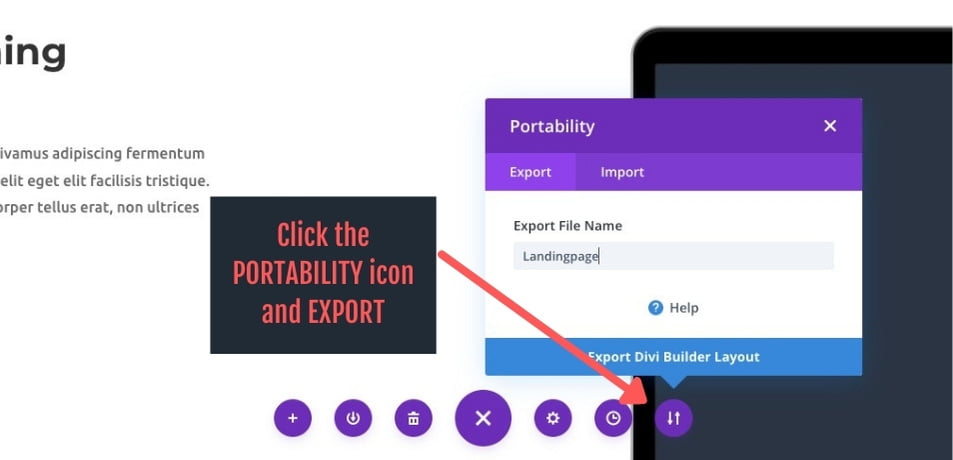
- Click the Portability icon (down and up arrows) in the right corner
- Make sure that the Export tab is active and choose a name (Divi will remove spaces and forbidden characters from the file name automatically)
- Click Export Divi Builder layout
- Save the JSON file on your device
Import a JSON layout
- Head over to the page or post where you want you want to import the layout
- Activate the Divi Visual Builder
- Expand the Divi Builder menu by clicking the purple circle icon with three dots in the bottom of the screen.
- Click the Portability icon (down and up arrows) in the right corner
- Click the Import tab
- Select the JSON layout file that you want to upload by clicking No File Selected or drag and drop it.
- Click Import Divi Builder Layout button
👉 Pro tip: Check the Download backup before importing checkbox to download a JSON backup of the original layout before importing.

That’s all for today!
I hope that you enjoyed this post. Subscribe to VictorDuse.com on YouTube and join our Facebook group for more crisp content on WordPress and web design.
👉 Free course: How to create a Divi website from scratch
👉 Related content: How to export and import Divi JSON layouts




0 Comments