
There’s finally an easy way to add a YouTube background video in Divi 5! With Divi Video Pro, you can use YouTube videos directly as background videos without having to download them or upload them to your WordPress media library. Divi Video Pro also supports background videos from Vimeo and Dynamic Content.
Join +5 240 subscribers!
Adding YouTube Background Videos in Divi 5
By default, Divi only supports MP4 and WebM files for background videos. Elegant Themes provide a workaround solution but it’s cumbersome and far from best practice.
Divi Video Pro adds a dropdown to the existing background video settings in Divi sections, rows, columns and modules. Just choose between Video File, YouTube and Vimeo.
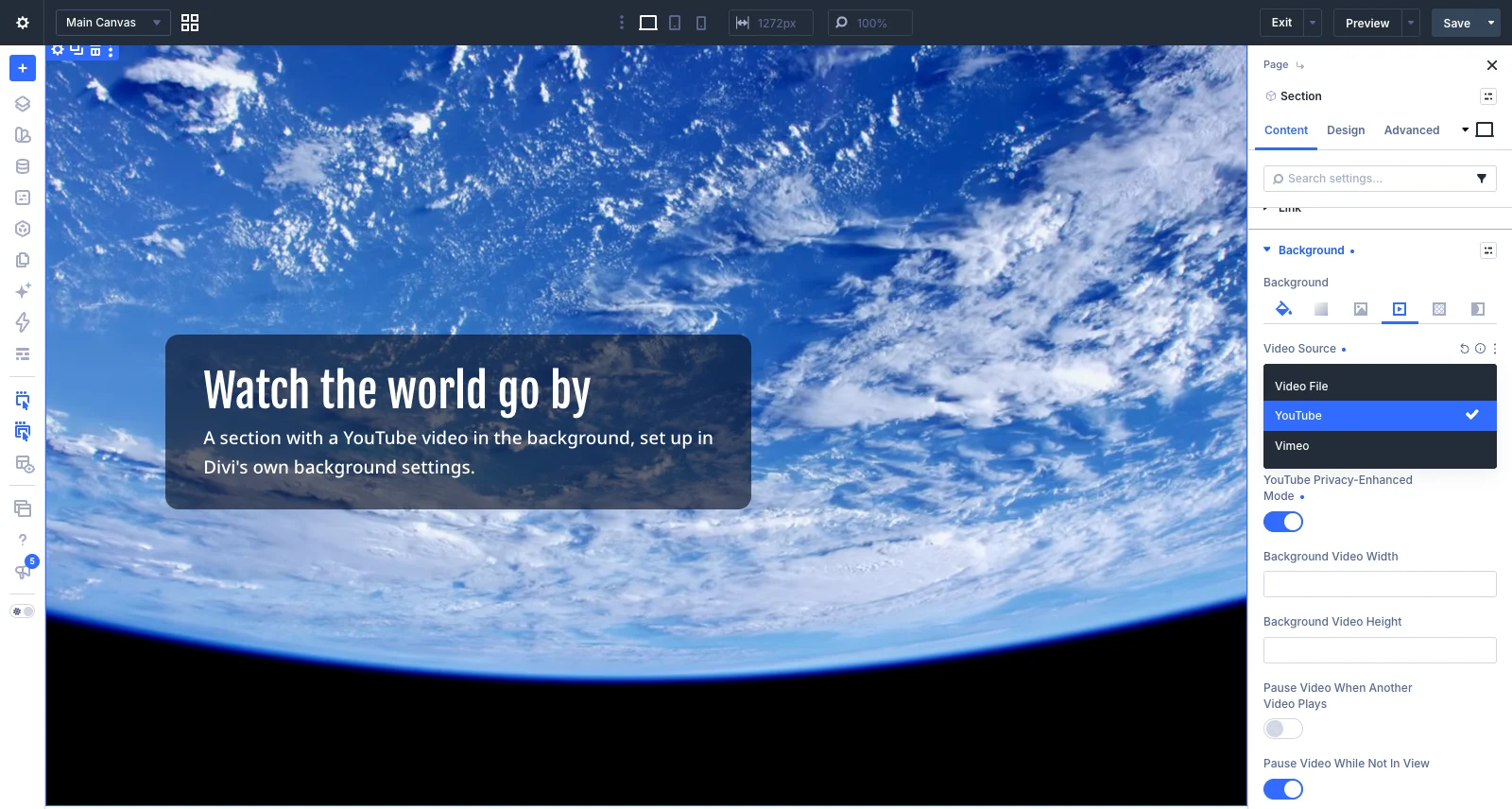
Make your choice and paste your YouTube or Vimeo video URL, and that’s it. The video will appear directly in the Divi Visual Builder and play automatically as a looping background video in frontend.
YouTube Privacy-Enhanced Mode
When using YouTube videos on your website, you can enable Privacy-Enhanced Mode. This loads the video from YouTube’s privacy-enhanced domain, youtube-nocookie.com, rather than the regular YouTube domain.
The purpose is to limit the amount of visitor data shared with YouTube. It does not replace the need to consider cookie consent and other privacy requirements on your website.
Hide the YouTube Logo and Video Title
One issue with YouTube background videos is that YouTube displays its logo and the video title when playback starts. There is no official parameter that removes these elements completely.
Divi Video Pro includes an option called Crop YouTube’s Title And Logo, which is enabled by default. It crops approximately 70 pixels from the top and bottom of the video to hide the logo and title.
If you prefer to display the complete video, including YouTube’s branding, you can disable this option under Divi > Divi Video Pro > Background Videos.
Hide YouTube Playback Controls
YouTube also displays playback controls when a background video starts playing. These include the play and pause buttons, previous and next buttons, and other elements from the YouTube player.
Unfortunately, there is no official way to remove these controls from the player. However, they disappear automatically after a few seconds.
Divi Video Pro has an optional setting called Delay Video Play To Hide YouTube’s Player Controls. When enabled, the video is delayed until the playback controls have disappeared.
The setting is disabled by default because it introduces a delay before the background video becomes visible. If you enable it, the element’s background image is displayed during the delay. If no background image is set, the YouTube video thumbnail is used instead.
Vimeo Background Videos
In addition to YouTube, Divi Video Pro adds Vimeo as a background video source.
Select Vimeo from the Video Source dropdown and paste your Vimeo video URL. The video will appear in the Visual Builder just like a YouTube background video.
Vimeo also has a privacy option called Do Not Track. Enable it to prevent the Vimeo player from collecting session and analytics data.
There are a couple of things to keep in mind when using Vimeo:
- Background video playback requires a paid Vimeo plan.
- Unlisted videos are supported, but you must use the complete video URL, including its privacy hash.
- Vimeo background videos don’t display a logo, title or playback controls, so there is no need for the cropping or playback delay options available for YouTube.
Use Dynamic Content for Background Videos
You can also use dynamic content as a background video source. This works with both video URLs and video files.
For example, you can create a custom field with Advanced Custom Fields (ACF) containing a YouTube or Vimeo URL. Instead of adding the URL manually to each page, you can connect the background video field to your ACF field using Divi’s Dynamic Content feature.
To do this, open the background video settings and click the Dynamic Content icon next to the video field. Select the custom field containing your video URL.
This is particularly useful when working with the Divi Theme Builder and custom post types. You can create a single template and let each post display its own background video based on the value stored in its custom field.
Dynamic content also works with MP4 and WebM background video fields.
Background Video Settings
Divi Video Pro adds several options under Divi > Divi Video Pro > Background Videos in the WordPress admin area.
Allow YouTube Background Videos
Enabled by default. Controls whether YouTube is available as a background video source in the Divi Builder.
Crop YouTube’s Title And Logo
Enabled by default. Crops approximately 70 pixels from the top and bottom of YouTube videos to hide the logo and title.
Delay Video Play To Hide YouTube’s Player Controls
Disabled by default. Delays video playback until YouTube’s player controls have disappeared.
Allow Vimeo Background Videos
Enabled by default. Controls whether Vimeo is available as a background video source.
Enable Dynamic Content for Background Videos
Enabled by default. Allows you to connect background video fields to dynamic content, including custom fields.
Show A Loading Spinner On Background Videos
Enabled by default. Controls whether Divi’s default loading spinner is displayed while a background video loads. Disable it if you don’t want the spinner to appear.
Pause Background Videos In The Visual Builder
Disabled by default. Pauses background videos while you work in the Divi Visual Builder. This can be useful when adjusting spacing, positioning and other design settings, as constantly moving videos can make editing distracting.
This setting only affects the Visual Builder. Background videos will continue to play normally on the front end.
More Background Video Options
Divi Video Pro also includes options for controlling how background videos behave on the front end.
Pause Video While Not In View pauses a background video when its element is outside the visible area of the browser. Playback resumes when the visitor scrolls back to the element.
Pause Video When Another Video Plays pauses background videos when another video on the page starts playing with sound.
Background videos can also be used on mobile devices and tablets. However, autoplay behavior depends on the device and browser. Some devices restrict autoplay, for example when Low Power Mode or data-saving settings are enabled. In those cases, the element’s background image or color is displayed instead.
The same applies to visitors who have enabled reduced motion on their devices. Background videos from YouTube and Vimeo will not play for these visitors.
Get Divi Video Pro
Divi Video Pro adds YouTube and Vimeo as background video sources in Divi 5, along with support for dynamic content and several additional playback settings like smart autoplay, looping, video popups and improved page speed, accessibility and privacy.
If you’re serous about using videos on your Divi websites, than Divi Video Pro is the perfect choice for you. Check out the plugin documentation and the live demo for more details.




0 Comments